Workspace
On this page
- The MOSAIC window
- The splash
- The settings menu and the accent colour
- About MOSAIC
- The manual
- Documents and plans
- The document header
- All documents
- The sidebar
- Right-click menus
- Documents, plans and folders
- Journals
- Trash
- The command palette
- Files on disk
- Autosave
- Source control and team work
- A team workflow
- External changes
- Broken files and backups
- Switching workspaces
The workspace is everything MOSAIC keeps for an Unreal project: projects, folders, documents (with their Pages and References modes), plans, media, tags and team members, stored as plain files in one folder. This page covers the MOSAIC window and its sidebar, journals, the command palette, and how the files behave on disk, in source control and in a team.
The MOSAIC window
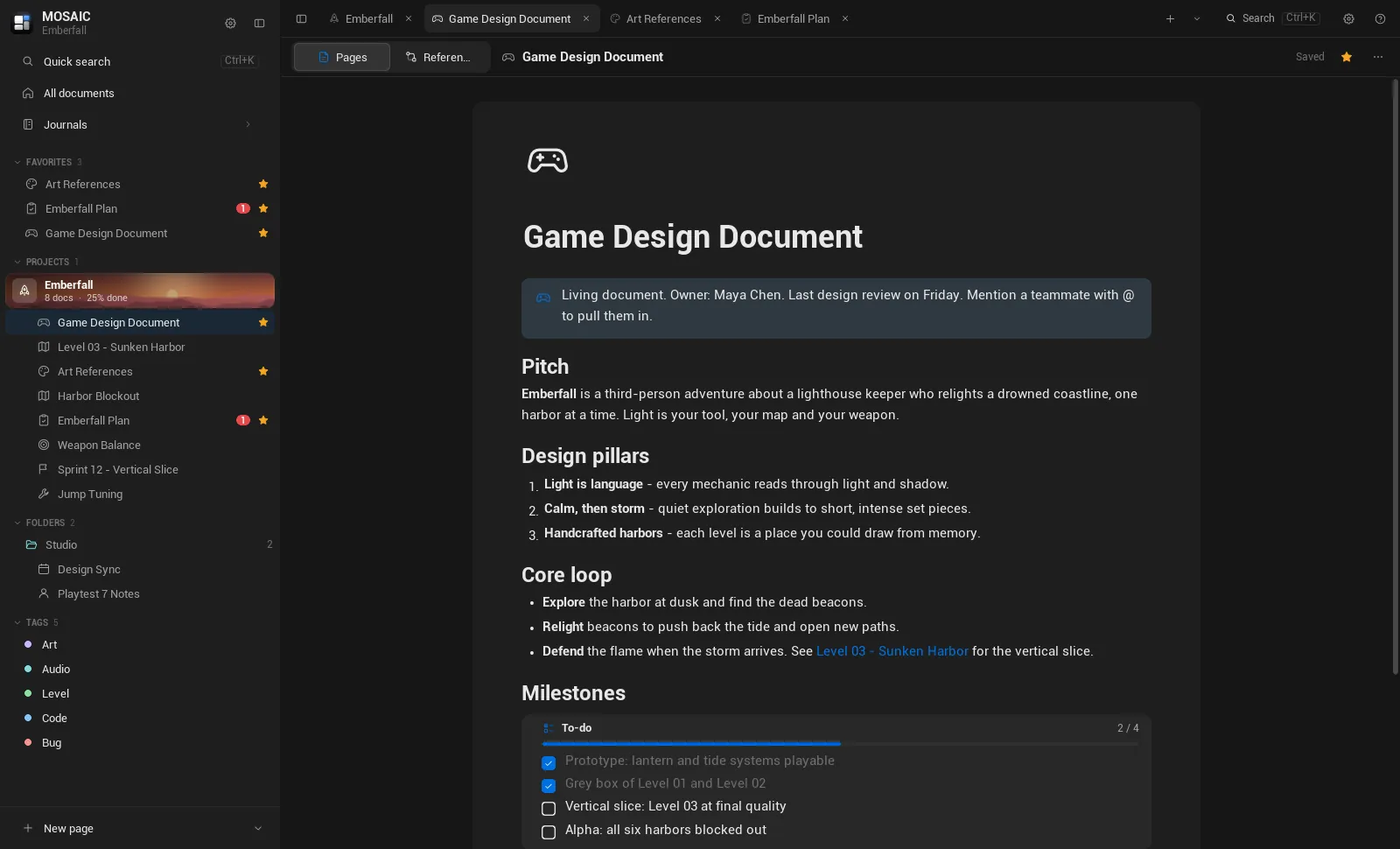
Open it with the MOSAIC button of the level editor toolbar, with Tools > MOSAIC, or from the Window menu. The window has three parts:
- The sidebar on the left: your projects, documents, journals, favourites, folders, tags and trash (see The sidebar). Drag the splitter to resize it; Ctrl+\, the sidebar button at the left of the tab bar or the collapse button at the top of the sidebar shows or hides it.
- The tab bar at the top: one thin tab per open document or plan. Click a tab to activate it; close it with its x, with Ctrl+W, or with a middle click. Ctrl+Page Down and Ctrl+Page Up move to the next and previous tab. At the right of the tab bar: + (a new document in the default mode; Shift+click for the other mode) and its arrow (New Page, New References Board, New Plan, page from template, project or folder), Search (Ctrl+K, the command palette), the settings button (gear, see The settings menu) and ? (About MOSAIC: version, contact, the manual and the keyboard shortcuts; F1 opens the manual directly). The editor tab of MOSAIC reads "MOSAIC - document".
- The document in the centre, under its header: a document in Pages mode (Pages), in References mode (Boards) or a plan (Planner).
Menus, right-click menus, dropdowns, popups and tooltips are square panels with a thin border (the controls inside them keep their rounded look). Buttons that appear when you hover a row or a block (+, ..., palette, block handles, column and list headers) stay visible while the menu they opened is open, so you can always move the mouse into it.
With no document active, the window shows All documents (see below).
MOSAIC reopens the tabs that were open, the active tab and the sidebar layout the next time you open it. These are kept per user and never go into the shared workspace files.
The splash
While MOSAIC loads, a small MOSAIC splash shows its logo (the four tiles of the app icon, white, light grey, blue and grey on a dark plate, assemble one after the other under a soft blue glow), the version, the LIDA Tools mark next to BY LIDA TOOLS and a thin progress line that follows the real start-up work: Loading workspace, Indexing documents (so the command palette answers at once), Preparing icons, Caching the manual and Opening. Then the splash fades out over the ready window, so MOSAIC appears complete, without pop-in.
- Esc or a click skips it; MOSAIC opens at once.
- Show Splash in the settings chooses when it shows: Always (the default), Once per Editor Session (the first time you open MOSAIC after starting the editor) or Never.
- It shows for every way of opening MOSAIC: the toolbar button, Tools > MOSAIC, the Window menu and a MOSAIC tab that the editor restores with its layout. When the restored tab waits behind other tabs, the toolbar button (or Tools > MOSAIC) brings it forward with its splash; a MOSAIC tab that is already in front just keeps the focus.
- It never blocks the editor: a modal dialog, a minimised editor or an editor that is still busy ends it at once and opens MOSAIC. It is never shown in commandlets, automated runs or tests.
- The console command
Mosaic.ShowSplashshows the splash now, whatever the setting says, and then opens or brings forward the MOSAIC tab.
The settings menu and the accent colour
The gear button at the top of the sidebar (next to the MOSAIC name) and in the tab bar opens the settings menu:
| Part | What it does |
|---|---|
| Accent colour | Ten swatches (Blue, Indigo, Violet, Pink, Red, Orange, Amber, Green, Teal, Graphite), Custom... (any colour, with a live preview while you pick) and Editor theme (use the accent of the editor theme) |
| Page Theme | Dark or Light Paper (see Pages) |
| New Documents Open As | Pages or References |
| All Settings... | Editor Preferences > Plugins > MOSAIC (see Settings) |
| Show Workspace Folder | Opens the workspace folder in your file explorer |
| Open the Manual | This manual (F1) |
| About MOSAIC | The About card: version, Unreal Engine version, contact, the keyboard shortcuts and the manual |
The accent colour colours the selection, focus rings, primary buttons, active rows and tools. A new accent applies at once to the whole MOSAIC window, without reopening it. It is a per-user setting (Accent and Custom Accent Color in the settings); Change accent colour in the command palette opens the colour picker directly.
About MOSAIC
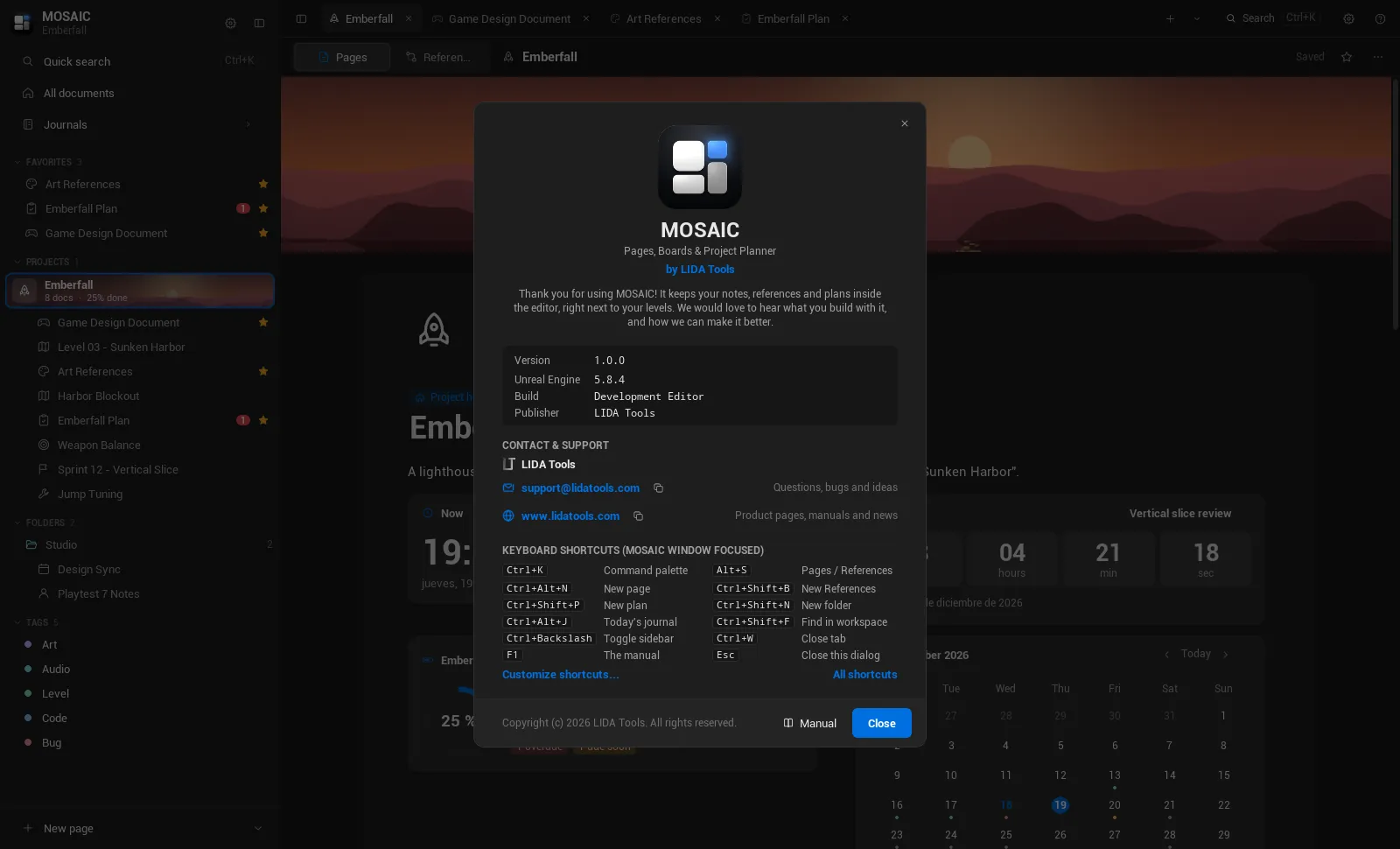
The ? button at the right of the tab bar (also About MOSAIC in the settings menu and in the command palette) dims the MOSAIC window and shows a centred card:
- The MOSAIC logo, the name and Pages, Boards & Project Planner, by LIDA Tools with its mark and a short thank-you.
- Version (the version of the installed MOSAIC plugin), Unreal Engine (the engine version), Build and Publisher.
- CONTACT & SUPPORT: the LIDA Tools row, then [email protected] for questions, bugs and ideas: click it to write a message in your mail app, or use the copy button next to it. Under it, www.lidatools.com opens the LIDA Tools website in your browser (the copy button copies the address).
- KEYBOARD SHORTCUTS (MOSAIC WINDOW FOCUSED): the main keys in two columns of key chips and actions: command palette, Pages / References, new page, new References, new plan, new folder, today's journal, find in workspace, toggle sidebar, close tab, F1 (the manual) and Esc (close the card). The keys are read from the MOSAIC commands, so a key you rebind shows here at once (- when a command has no key). Customize shortcuts... opens Editor Preferences > Keyboard Shortcuts (MOSAIC's commands are in the MOSAIC category) and All shortcuts opens the Keyboard Shortcuts page of this manual.
- A grey footer band at the bottom of the card: the copyright on the left, Manual (this manual in its own window) and Close on the right.
The card has the layout of GRADE Studio's About dialog, with MOSAIC's rounded corners.
Esc, Enter, Space, the x in the corner or a click outside the card closes it. F1 closes it and opens the manual; editor shortcuts with Ctrl or Alt (such as Ctrl+S) keep working while it is open. F1 anywhere in the MOSAIC window still opens the manual directly, without the card.
The manual
This manual opens in its own window (F1, Manual on the About card, or Open the Manual in the command palette). The header has Home (Alt+Home), Back and Forward (Alt+Left / Alt+Right), the path of the page and a search box (Ctrl+F) that searches the text of every page: the results replace the contents on the left, a click opens the page at that section and Enter opens the first one. Above the contents, Filter contents keeps only the groups, pages and sections whose names contain your words. Pages and sections can be starred as favourites and given a colour from their right-click menu.
Documents and plans
MOSAIC keeps two kinds of files:
- Documents. Every document has two modes, Pages (notes in blocks) and References (an infinite canvas); it opens in the mode you left it in, and the Pages | References switch (Alt+S) switches. New documents start in Pages mode (see Default Mode for New Documents in the settings); New References Board creates one that starts in References mode. The sidebar shows a page icon or a canvas icon by mode (or the page's own icon).
- Plans. Tasks with statuses and dates, shown as a kanban, a table or a calendar.
The document header
Above the active document:
| Part | What it does |
|---|---|
| Pages | References | A two-option switch, each option with its icon and label, at the left of the title: it switches the document's mode (documents only; Alt+S, shown in its tooltips; one undo step) |
| Icon and title | The document's icon and name. Click the name to rename it |
| Save state | Saved, Saving... (a change is waiting for the autosave) or Changed on disk - choose Reload or Keep Mine (see External changes) |
| Star | Add to or remove from Favorites |
| ... (more) | Switch mode, Full Width and Copy as Markdown (pages), favourites, Duplicate, Show File in Explorer, Page Theme, New Documents Open As, Move to Trash; pages also show their word count. See Pages |
All documents
All documents (in the sidebar, in the command palette, or shown whenever no tab is active) is the overview of the workspace:
- At the top, the title and the create buttons: Templates (a new page from a template), Project (a new project), New page, and an arrow for a References board, a plan, a folder and the rest.
- PROJECTS: a card per project with its icon, colour and number of documents. Click a card to open the project's Home page; right-click it for the project menu.
- DOCUMENTS: every document and plan, recent ones first, then the others by name, with the Type (Page, References, Plan, Journal or Project home) and the Folder. Click a row to open it; right-click it for the full document menu (open, Open as Pages / Open as References, rename, duplicate, favourite, colour, background, show in Explorer, copy file path, move to trash).
A workspace without documents shows No documents yet with a New page button.
The sidebar
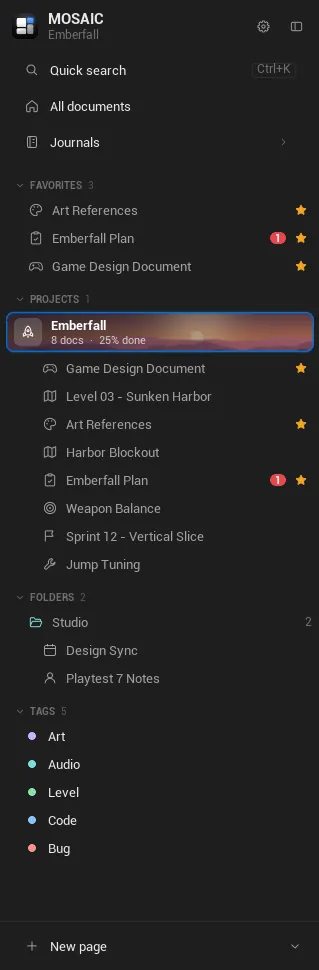
From top to bottom:
| Part | Contents |
|---|---|
| Header | The MOSAIC tile and name with the Unreal project's name under it (the workspace folder in the tooltip), the settings button (gear, see The settings menu) and the collapse button |
| Quick search | Opens the command palette (Ctrl+K) |
| All documents | The list of every document (above) |
| Journals | One entry for your journal pages: a click opens today's page (Ctrl+Alt+J); the chevron at its right folds out the recent days that have a page (the last 14, newest first; Quick search finds the older ones). See Journals |
| Favorites | Documents and plans you starred, by name |
| Projects | Your projects as banners painted with their backdrop, with an icon tile; click one to open its Home page. Always shown, with + to create one |
| Folders | Your folders (tinted with their colour), documents and plans, in your order (projects are listed under Projects, journal pages under Journals) |
| Tags | The workspace tags with their colours; click one to search for it in the command palette |
| Trash | Deleted documents and plans, until you restore them or empty the trash |
| + New page | At the bottom: a new document in the default mode in the selected folder (Ctrl+Alt+N). Shift+click creates the other mode (a References board, or a page when your default mode is References). The arrow next to it offers New Page, New References Board, New Plan, Page from Template, Project, Folder and Today's journal |
Section headers are small uppercase labels with the number of entries after them; hover a header for its pill, a little shorter than the row (the space above it separates the sections), with the thin chevron (fold and unfold), the label, the count and the + button all centred in it. Rows draw no keyboard focus rectangle; the highlighted row is the pill. Tree rows show a thin chevron on hover when they have children, and the selected row is a pill tinted with the accent colour. Sections without content (no favourites, no tags, an empty trash) are hidden; Projects and Folders are always shown.
With the sidebar focused, the arrow keys move the highlight, Enter opens the highlighted row (a document, a project's Home page, a tag search, or folds a section or folder) and Left / Right fold and unfold.
Right-click menus
Every row of the sidebar has a right-click menu:
| Row | Menu |
|---|---|
| A document or plan | Open, Open as Pages / Open as References, Rename, Duplicate, Add to / Remove from Favorites, Color, Background, Show in Explorer, Copy File Path, Move to Trash |
| A folder | New (page, References board, plan, page from template, project or folder inside it), Turn into Project, Color, Delete Folder |
| A project | The project menu |
| A tag | Find Items and Tasks, Color |
| A trash entry, the Trash header | Restore, Delete for Good; Empty Trash |
| All documents | The create menu |
| Journals (entry) | Today's Journal, Yesterday's Journal, Tomorrow's Journal |
| Quick search | Command Palette, Open the Manual |
| Section headers | Projects: New Project. Favorites: Remove All Favorites. Tags: Search by Tag.... Folders: the create menu |
The rows of All documents, the project cards and the planner's rows, cards and calendar days have full right-click menus too.
Documents, plans and folders
- Create: + New page (and its arrow menu) at the bottom of the sidebar, + on the Folders section header (top level), right-click a folder > New, the + of the tab bar, All documents, the command palette, or the keys Ctrl+Alt+N (page in the default mode), Ctrl+Shift+B (References board), Ctrl+Shift+P (plan), Ctrl+Shift+N (folder). New documents go into the selected folder (or the folder of the selected document), or to the top level when nothing is selected. A new page opens with its title ready to type; other new documents get their name ready to type in the sidebar.
- Open: click a document (single click). Documents open in tabs; clicking an open document activates its tab. Right-click a document > Open as Pages / Open as References opens it and switches its mode.
- Rename: F2, click the name of a selected row, Rename in the right-click menu, or the title of a page or of the document header. Press Enter to apply.
- Move and reorder: drag rows. Drop between two rows to reorder; drop onto a folder to move the document (or folder) into it. Folders can be nested.
- Duplicate: Ctrl+D, Duplicate in the right-click menu or in the document header's more menu makes "Name Copy" right after the original and opens it.
- Colour: right-click > Color colours the document's or folder's icon (or No colour).
- Background: right-click a document > Background gives its sidebar row a background: a colour (the swatches, a custom colour, or none to make the row plain again) and a style: Plain Colour (a soft pill of the colour behind the row) or a painted backdrop in the colour, with white text (Aurora, Mesh, Dots, Lines, Waves, Solid; the accent colour when no colour is set). The same submenu is in the right-click menu of All documents rows. Shared with the team, one undo step.
- Favourites: the star at the right of a row (on hover), the star of the document header, or right-click > Add to Favorites.
- Delete: Delete or right-click > Move to Trash (documents), Delete Folder (folders). A folder is deleted with its subfolders; every document inside it goes to the trash (MOSAIC asks first when the folder is not empty).
- Expand or collapse folders with their chevron. The state is saved with the workspace.
Every change in the sidebar (create, rename, move, colour, favourite, delete) is one undo step: Ctrl+Z undoes it, Ctrl+Y redoes it. Undoing the creation of a document moves its file to the trash; redoing brings it back.
The right-click menu of a document also has Show in Explorer (opens the folder of its file, after saving it) and Copy File Path (the absolute path of its JSON file).
Plans with overdue tasks show a red badge with the number of overdue tasks (not done, due date before today).
A document whose file is missing or cannot be read is drawn greyed with a tooltip; MOSAIC never overwrites that file (see Broken files).
Journals
A journal page is a page for one day: daily notes, a log of what you did, the plan for tomorrow.
- Journals in the sidebar, Today's journal in the command palette or in the + New page menu, or Ctrl+Alt+J opens today's page, and creates it the first time.
- Journal pages live in the Journals folder at the top level of the sidebar (created when needed; its name is Journals Folder Name in the settings). They are titled with the date in your Date Format (for example "16 November 2026") and show the date under the title.
- The chevron of the Journals entry lists the last 14 days that have a page, newest first; older days are found with Quick search. Journal pages are not repeated under Folders: the journals folder only shows there when it holds other documents too.
- A journal page is an ordinary page: write, add tables and embeds, switch it to References, rename or move it as you like (it keeps its date).
Trash
Deleting a document or plan moves its file into the workspace's Trash folder. The Trash section lists them with the date and the folder they were deleted from.
- Restore: double-click the row, its restore button, or right-click > Restore. The document goes back into its folder (or the top level when that folder no longer exists).
- Delete for Good: Delete on a trash row, or right-click > Delete for Good. MOSAIC asks first; this cannot be undone.
- Empty Trash: right-click the Trash section > Empty Trash (asks first).
The command palette
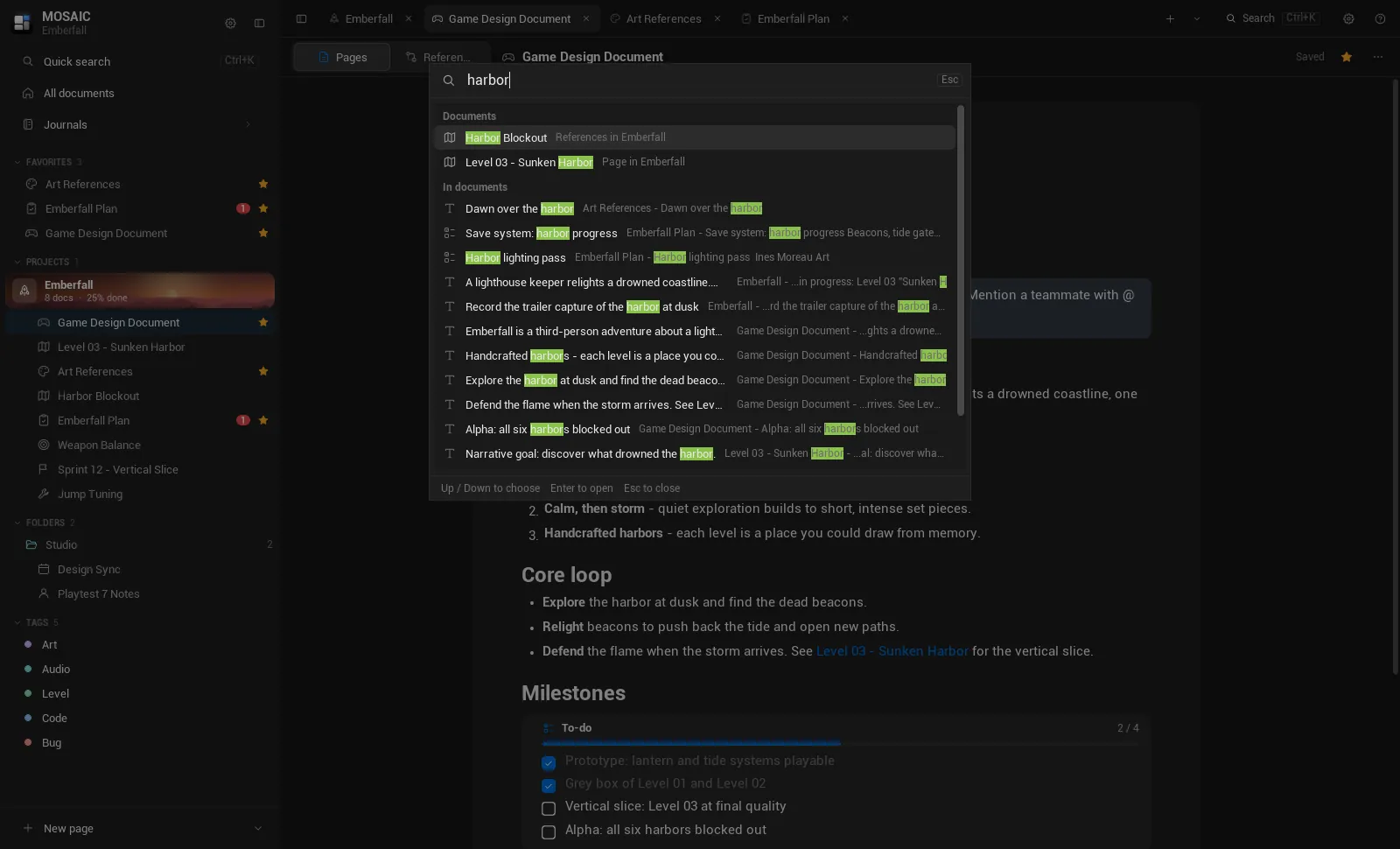
Press Ctrl+K (or Ctrl+P, Ctrl+Shift+F, the Search button of the tab bar, or Quick search in the sidebar) to open the command palette:
- With nothing typed, it lists your recent documents (up to six) and the actions: New page, New References board, New plan, New folder, New project, Today's journal, Switch to Pages / Switch to References (for the active document), All documents, Toggle sidebar, MOSAIC settings, Change accent colour, Open the manual and About MOSAIC, each with its key. Typing also finds New from template: name for each page template.
- Type to filter documents (letters typed in order also match, so
wlcfinds Welcome; recent documents rank higher) and actions. - From two letters on, it also lists matches in documents: page blocks, table cells, board items (titles, text, URLs, asset names, camera names, to-do entries, tags, Blueprint snippet titles and graph types) and plan tasks (title, description, assignee, tags, checklist), with a snippet. Several words must all match, in any order, ignoring case.
Up / Down choose, Enter opens (and shows the block, item or task, selected; a page block switches the document to Pages mode, a canvas item to References) or runs the action, Esc or a click outside closes the palette.
Files on disk
The workspace folder is <Project>/Mosaic unless you choose another one in the settings. Inside:
| Path | Contents |
|---|---|
workspace.json | The folders and projects (with their icon, cover and Home page), the order of documents in the sidebar, favourites, colours, tags and team members |
boards/<id>.board.json | One document: its mode, its page (blocks, icon, cover and its size and position, content card, journal date, width) and its canvas (items, connectors, background, grid, last view) |
plans/<id>.plan.json | One plan: its statuses, tasks (with the values of your own table columns), last view, table columns and kanban card options |
media/<hash>.<ext> | Images, GIFs, videos and captures used by documents |
media/previews/ | The link previews: title, description and picture of pasted links and online videos, so they show offline too. Safe to delete (they are downloaded again while Fetch Link Previews is on) |
Trash/ | Deleted documents and plans, and trash.json (local, see Trash) |
- Files are UTF-8 JSON, pretty printed, with a
mosaicFormatand amosaicVersionfield at the top. Fields that keep their default value are left out, so files stay small and differences are easy to read and merge. - Every path stored in a document is relative to the workspace folder, so a workspace works on any computer and in any folder.
- Media files are named by the SHA-1 of their content: the same image pasted twice, or by two people, is stored once.
- Every write is atomic: MOSAIC writes a temporary file next to the target and then replaces the target, so a crash or a full disk never leaves a half-written file.
- Unknown fields are ignored when reading, so a file written by a newer version of MOSAIC still opens.
A board item or page block remembers each media file it uses. Deleting it does not delete its media file (another item, an undo step or a teammate may still use it).
MOSAIC also keeps caches in the project's Intermediate/Mosaic folder (video posters, Blueprint snapshots, player pages). They are rebuilt when needed, are never sent to source control by MOSAIC, and can be deleted at any time.
Autosave
There is no Save button. A moment after your last change (2 seconds by default, Autosave Delay in the settings) MOSAIC writes the changed documents and the workspace file. It also saves everything when the editor closes. The document header shows Saving... while a change is waiting and Saved once it is written.
The position and zoom of a board and the active view of a plan are saved too, but they are not undo steps. Page edits are grouped: one undo step per typing burst in a block (see Pages).
If a file cannot be written (read-only, locked, disk full), MOSAIC shows a notification (at most once a minute per file) and keeps the change in memory; it tries again with the next change and when the editor closes.
Source control and team work
The workspace folder lives in your project, so it goes into source control with the rest of the project. MOSAIC is designed for that:
- One file per document and per plan: two people editing different documents never touch the same file.
- Small, stable JSON with relative paths: merges are readable.
- Media named by content: the same file never conflicts with itself.
When a source control provider is enabled in the editor:
- Check Out from Source Control Before Saving (on by default): before writing a file that is read-only, MOSAIC checks it out.
- Mark Files for Add / Delete (on by default): new documents, plans and media files are marked for add, and documents you delete are marked for delete.
Files under the project's Saved folder are never sent to source control. The Trash folder is never added (it contains an ignore file for source control systems that read one).
A team workflow
- Keep the workspace in the project (the default) and submit it like any other content.
- Sync as usual. MOSAIC notices the files that changed and reloads them (see below); there is no need to close the editor.
- Before a big reorganisation of the sidebar (many folders moved), sync first: the sidebar order lives in one file,
workspace.json. - If two people changed the same document, your source control's merge tools see plain JSON. A file that ends up unreadable after a bad merge is reported and backed up, never overwritten (see Broken files).
External changes
MOSAIC watches the workspace folder. When a document, a plan or workspace.json changes on disk (a sync, a merge, another tool):
- If you have no unsaved changes in that document, MOSAIC reloads it at once. Open tabs update in place.
- If you do have unsaved changes, MOSAIC keeps your version and asks with a notification: Reload takes the version on disk (your unsaved changes are discarded), Keep Mine keeps yours (it overwrites the file at the next save). Until you choose, the document header says Changed on disk - choose Reload or Keep Mine and the document is not saved over the new file.
- If the editor closes before you choose, your version is written next to the file as
<file>.<date>-<time>.mine, and the file from disk is left untouched. Nothing is lost. - A new document or plan file that appears in the folder (for example added by a teammate) is added to the sidebar automatically, with the name and folder stored in it.
- A file deleted on disk is dropped from memory unless you have unsaved changes in it (they are written back).
Changes to media files and to the trash are not watched; they are read when needed.
Broken files and backups
If a file cannot be read (invalid JSON, a merge left conflict markers in it, a truncated copy):
- MOSAIC copies it to
<file>.broken(or<file>.<date>-<time>.brokenwhen that name is taken) and reports it with a notification and in the Output Log (LogMosaic). - The original file is never overwritten. The document is shown greyed in the sidebar and cannot be opened until the file is fixed.
- When the file changes again (you fixed it, or synced a good version), MOSAIC reads it again automatically.
- If
workspace.jsonitself is unreadable, MOSAIC rebuilds the sidebar from the document and plan files it finds (their names and folders are stored inside them) and keeps the broken file as.broken.
Switching workspaces
Changing Workspace Folder in the settings switches to the new folder at once: the current workspace is saved first, then the new one is loaded (an empty folder becomes a new workspace the next time MOSAIC needs it).